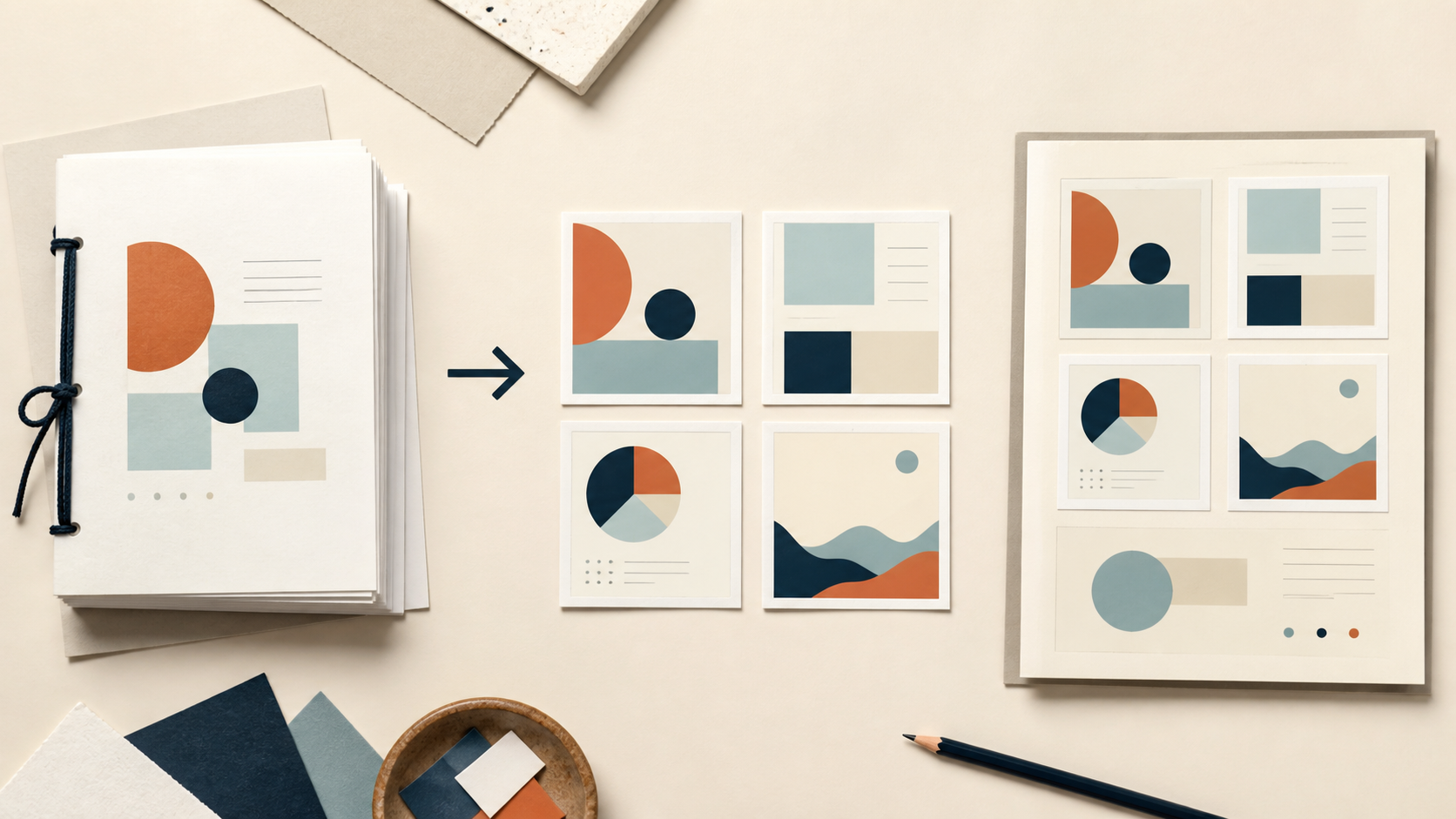
PDF-to-image conversion is useful when a slide deck, website, or messaging app cannot display a PDF page directly. The common mistake is choosing the highest DPI and assuming that more pixels always mean more detail.
PDF to Images renders the whole page. It does not extract the original photographs embedded inside the PDF, and it cannot restore detail that is missing from a low-resolution scan.
Pick the format from the page content
Choose PNG for pages dominated by text, line art, diagrams, or interface screenshots. PNG avoids JPEG block artifacts around fine edges, although the files can be larger.
Choose JPG for photo-heavy pages when smaller files matter more than perfectly sharp text. Inspect small captions and charts because JPEG compression can soften them.
Start with a practical DPI
- 96–150 DPI: quick previews, messages, and many web placements;
- 200 DPI: a useful starting point for mixed text and graphics;
- 300 DPI: more pixels for close inspection or some print workflows, with much larger output files.
These are starting points, not quality guarantees. Render one representative page first when possible, view it at the final display size, and only then choose a larger setting.
A reliable conversion workflow
- Remove irrelevant pages with Split PDF if you do not need the whole document.
- Upload a PDF no larger than 16MB to PDF to Images.
- Select PNG or JPG and an initial DPI.
- Download a text-heavy page and an image-heavy page.
- Check fine text, chart labels, color contrast, and file size at the intended placement.
- Compress the resulting images with Image Compressor only if the destination requires smaller files.
Temporary source and result files are server processed and scheduled for deletion after 60 minutes. Do not upload confidential or regulated documents.
FAQ
Q: Does 300 DPI guarantee print quality? A: No. It creates more output pixels, but it cannot add detail missing from the original PDF. Check the exported image at the actual print size.
Q: Can I convert only selected pages? A: The converter renders every page. Use Split PDF first to create a smaller PDF containing only the pages you need.
Q: Is PNG always better than JPG? A: No. PNG is usually better for sharp text and diagrams; JPG often produces smaller files for photo-heavy pages.