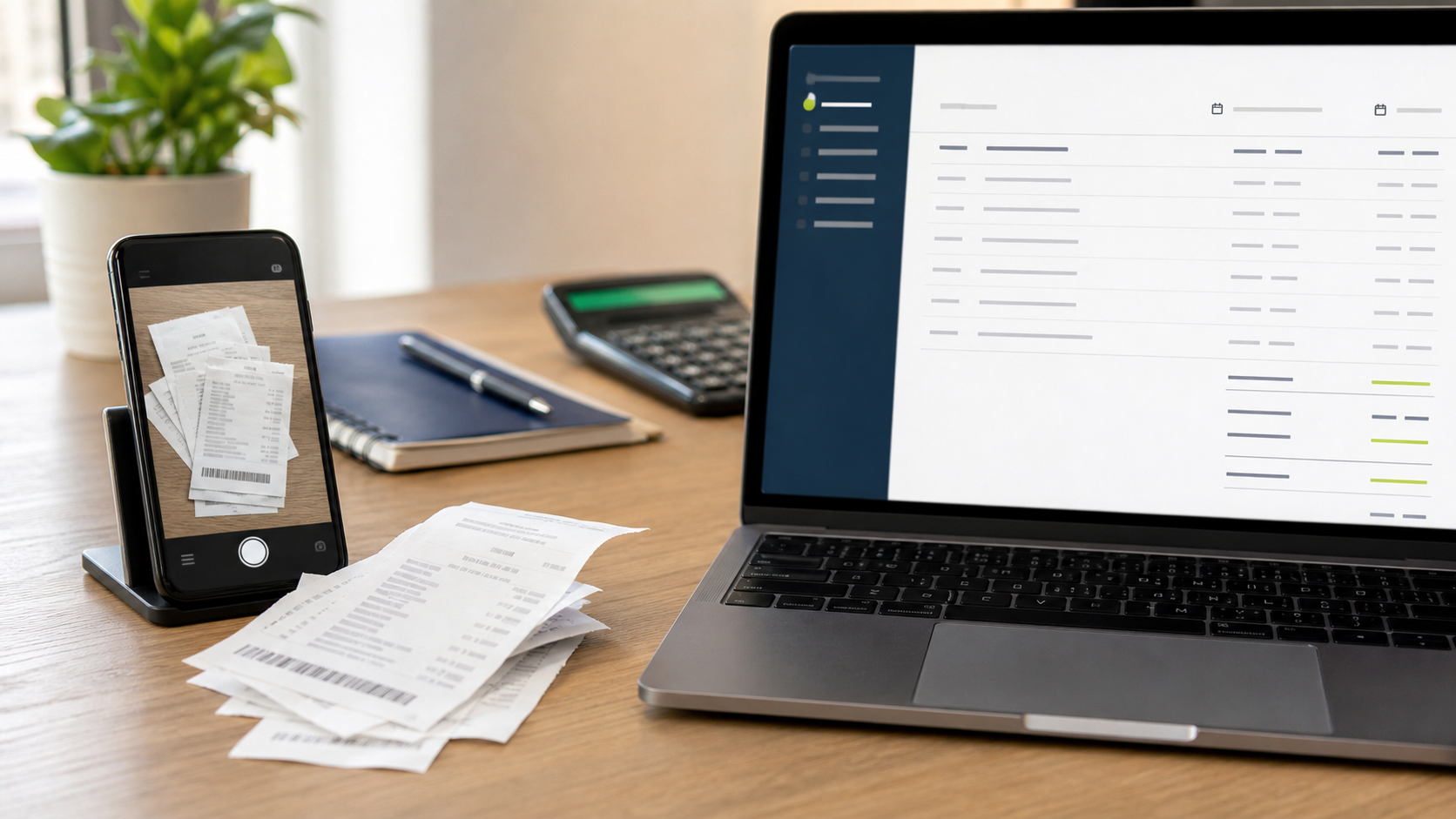
Receipts are short, but they are unforgiving. A missed decimal point or an incorrect purchase date can make an expense record worse than no record at all. OCR is still a sensible first step: it turns a photo into searchable text so you can spend your attention on the fields that matter.
Capture the receipt before it fades
Thermal-paper receipts fade and glare easily. Photograph them on a flat, dark surface with the entire receipt in frame. Avoid flash reflections across the total, tax line, or merchant name. If the receipt is curled, take two photos rather than forcing one blurry image to include every line.
Create a working copy, then crop the image so the receipt is upright and fills the frame. A tighter image gives OCR less background to misread.
Extract text, then make a record
Use Image to Text to create a text draft. For a one-off expense, paste only the verified fields into your spreadsheet or accounting record. For a receipt that must be shared as a document, use Image to Word to create an editable draft instead.
The first pass is for retrieval, not automatic bookkeeping. OCR can make a merchant name searchable and expose the date or item list, but it cannot know which tax rule, cost center, or category belongs in your system.
Check these five fields against the photo
Before entering or approving a receipt, compare the output with the source image:
- Merchant name and location, where relevant.
- Transaction date and currency.
- Subtotal, tax, discount, tip, and final total.
- Invoice or receipt number when you need an audit trail.
- The item or purpose that explains the business expense.
If a digit looks uncertain in the image, do not let an OCR guess decide it. Mark the record for follow-up or retain the source image alongside the entry. This matters even more when a receipt has more than one total, a refund, or a handwritten note.
A simple naming habit that saves time
Save the original with a searchable name such as 2026-08-23-vendor-total.jpg, using only information you are allowed to store in the filename. Put the verified text in the system where it belongs, not only in an OCR download folder. The image then remains easy to find when a colleague asks how a number was recorded.
Explore the Image Guides for related document and screenshot workflows. If the receipt contains another language, Image Translator can help you create a reviewable translation after extracting the visible text.
FAQ
Q: Can OCR enter a receipt directly into accounting software? A: This workflow creates text you can review. Match the verified fields to your accounting system's requirements before entering or importing anything.
Q: Why did OCR miss part of my receipt? A: Glare, folds, faint thermal paper, small type, and a loose crop can reduce recognition quality. Retake or crop the photo when possible.
Q: Which receipt values need manual verification? A: Always check dates, merchant names, currency, taxes, discounts, and the final total against the original image.