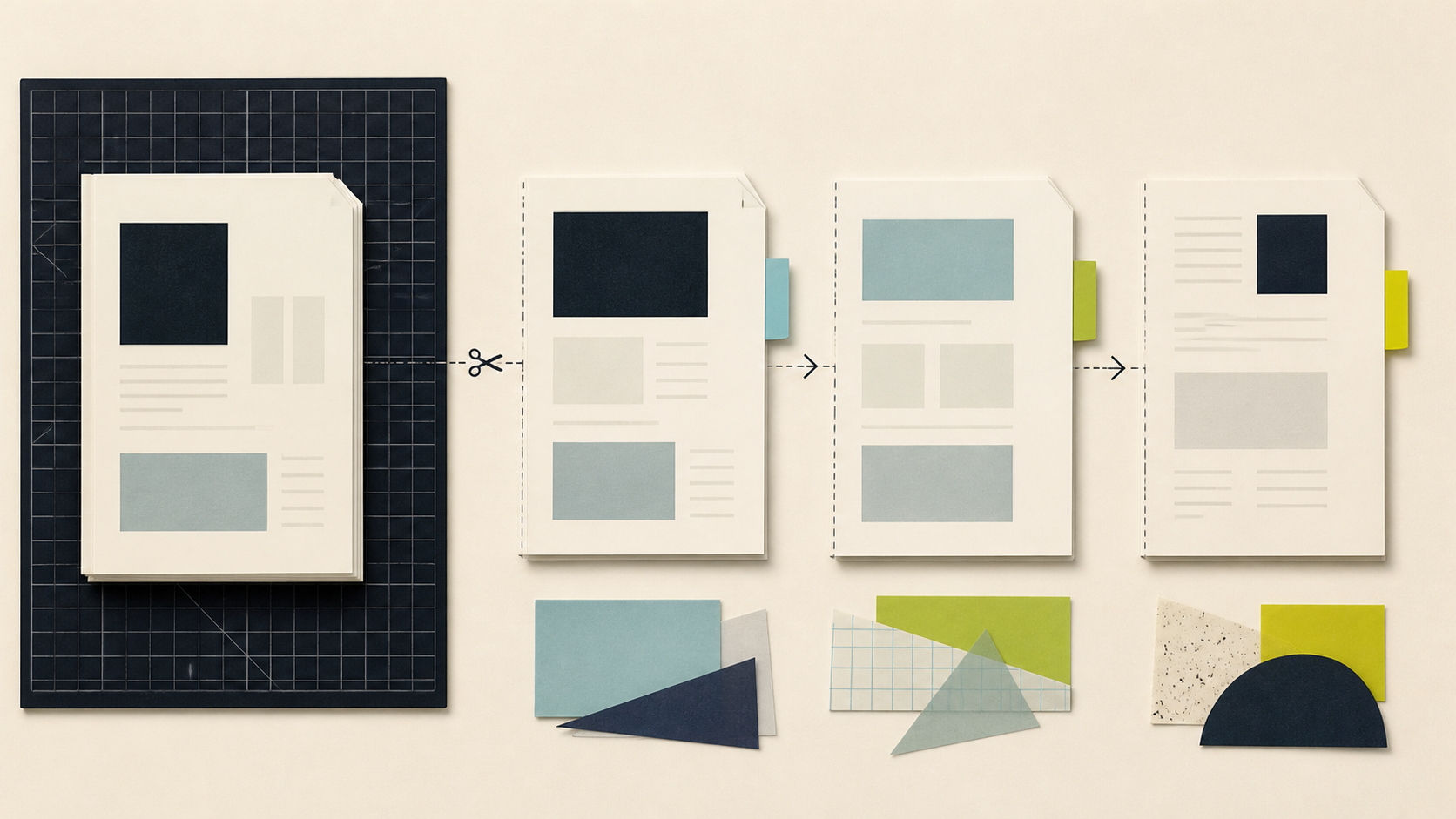
A 90-page PDF is often the wrong shape for the next task. You may need only the application form, one chapter for a colleague, or the signed pages for an archive. The safest split starts with a page map—not random ranges.
Open the original PDF and note where each section begins and ends. Write ranges in a simple list such as 1–4 cover, 5–28 report, and 29–34 appendix. Then use Split PDF to create only the outputs you need.
Build the page map first
Page numbers printed inside a report can differ from the PDF viewer’s page numbers because covers and contents pages may be unnumbered. Use the viewer’s actual page position when entering a range.
Before splitting, check three things:
- whether the cover should travel with the first section;
- whether a table or appendix crosses the proposed boundary;
- whether a signature, footnote, or definition belongs to the previous page.
If you cannot find the right section quickly, use AI PDF Chat or the built-in search to locate a heading, then verify its page in the viewer.
Split, name, and inspect
- Upload a PDF no larger than 16MB to Split PDF.
- Choose page ranges when you need multiple consecutive sections; choose page extraction for scattered pages.
- Download each result and give it a descriptive name such as
policy-section-3.pdf. - Open the first and last page of every output.
- Check forms, links, digital signatures, page orientation, and fonts before sending.
The tool copies pages without intentional image recompression, but PDF features can still change. Keep the original until the recipient confirms that the split files work.
Choose the next operation deliberately
Use Merge PDF if selected sections must become one final packet. Use Compress PDF only after the final page set is correct. If you need images rather than PDF pages, split first and then use PDF to Images so you do not render unnecessary pages.
FAQ
Q: Should I use page ranges or extract individual pages? A: Use ranges for consecutive sections such as 1–8 and 9–15. Use extraction when the pages are scattered, such as 2, 7, and 11.
Q: Will splitting remove a digital signature? A: It can invalidate or change signature behavior because a signed document is being rewritten. Keep the signed original and verify the output before relying on it.
Q: Can I split a scanned PDF? A: Often yes, because splitting works with page structure rather than OCR. Encrypted, damaged, or unusual files may still fail.