A screenshot is fast to save and frustrating to reuse. The message is visible, but you cannot search it, quote it, or read it in another language without first turning the pixels back into text.
The safest workflow is not “upload and trust.” It is “extract, compare, then decide what matters.” That takes a little longer than copying the first result, but it protects the details that screenshots are most likely to hide: names, buttons, numbers, dates, and short pieces of interface text.
Start with a readable source image
Use the original screenshot when you have it. Avoid a screenshot of a screenshot, a tiny crop from a chat app, or an image that has been repeatedly compressed. Text that looks just barely readable to you may be ambiguous to OCR.
Before translation, check three things:
- Is the relevant text large enough to read at normal zoom?
- Are any important lines cut off by a notification, browser chrome, or an overlapping window?
- Is there enough contrast between the text and its background?
If the answer is no, capture a cleaner version first. Cropping away unrelated interface chrome can also make the text easier to review.
Use a side-by-side translation workflow
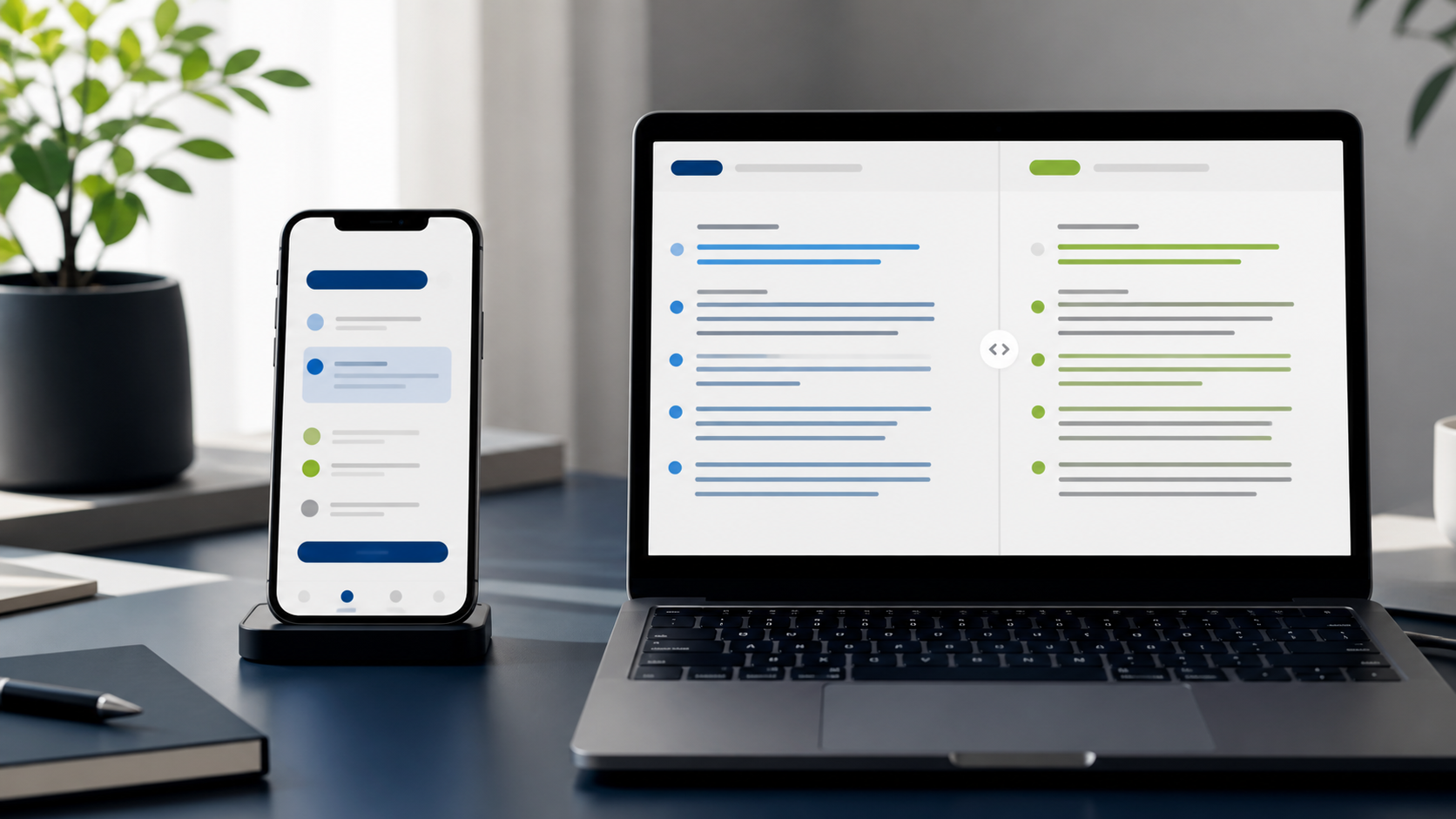
Open the Image Translator, choose the target language, and upload the screenshot. The tool first extracts visible text and then returns the original and translated drafts side by side.
That two-column result is the important part. Do not skip the original text just because you already understand the translation. Compare the rows that carry decisions or actions:
- Names of people, products, menus, or services.
- Numbers, dates, prices, quantities, and version labels.
- Buttons, warnings, error messages, and instructions.
- Specialized terms that might have more than one meaning.
If you only need the source words as editable text, use Image to Text instead. It is a simpler path when translation would add another layer you do not need.
Treat the result as a reading aid, not a final authority
An image translator can provide a strong first pass, but the image itself still controls the facts. A model may misread tightly spaced letters, decorative fonts, handwriting, small superscripts, or text curved around an object. Translation can also make a sentence smoother while subtly changing a technical meaning.
For anything consequential, keep the screenshot beside the result and verify the critical line manually. Do not use a quick image translation as the sole basis for legal, medical, safety, financial, or contractual decisions.
When the screenshot contains more than one language
Mixed-language screenshots happen in apps, product listings, forms, and travel photos. Break the task into sections when possible:
- Crop the main paragraph separately from navigation or labels.
- Translate the action buttons and warnings as a second pass.
- Keep product names and proper nouns in their source form unless you have an approved localized version.
This avoids a confusing result where multiple small UI strings are rearranged into one block of text.
A simple review checklist
Before sharing a translation, ask:
- Can I point to the exact source line for every important translated sentence?
- Did the original OCR capture the right numbers and names?
- Is the target language the one the recipient actually needs?
- Do I need a human reviewer for specialized terminology?
- Should I retain the source screenshot for later verification?
The action item is immediate: take one non-sensitive screenshot you regularly need to reference, translate it, and compare the original and translated drafts line by line. You will quickly learn which kinds of text need more careful source images.
For OCR, document, and publishing workflows around the same source files, continue with the Image Guides.
FAQ
Q: Can I translate text from a website or app screenshot? A: Yes. Use a clear screenshot with the relevant text visible, then review the extracted source and translated text side by side.
Q: Will the tool replace text inside the original screenshot? A: No. It returns reviewable text. If you need a localized image layout, the text and visual design need a separate editing step.
Q: What should I do when the result says no text was detected? A: Re-capture or crop the source image, improve contrast, and make sure the text is large and unobstructed. Very small, blurred, handwritten, or decorative text may need manual transcription.