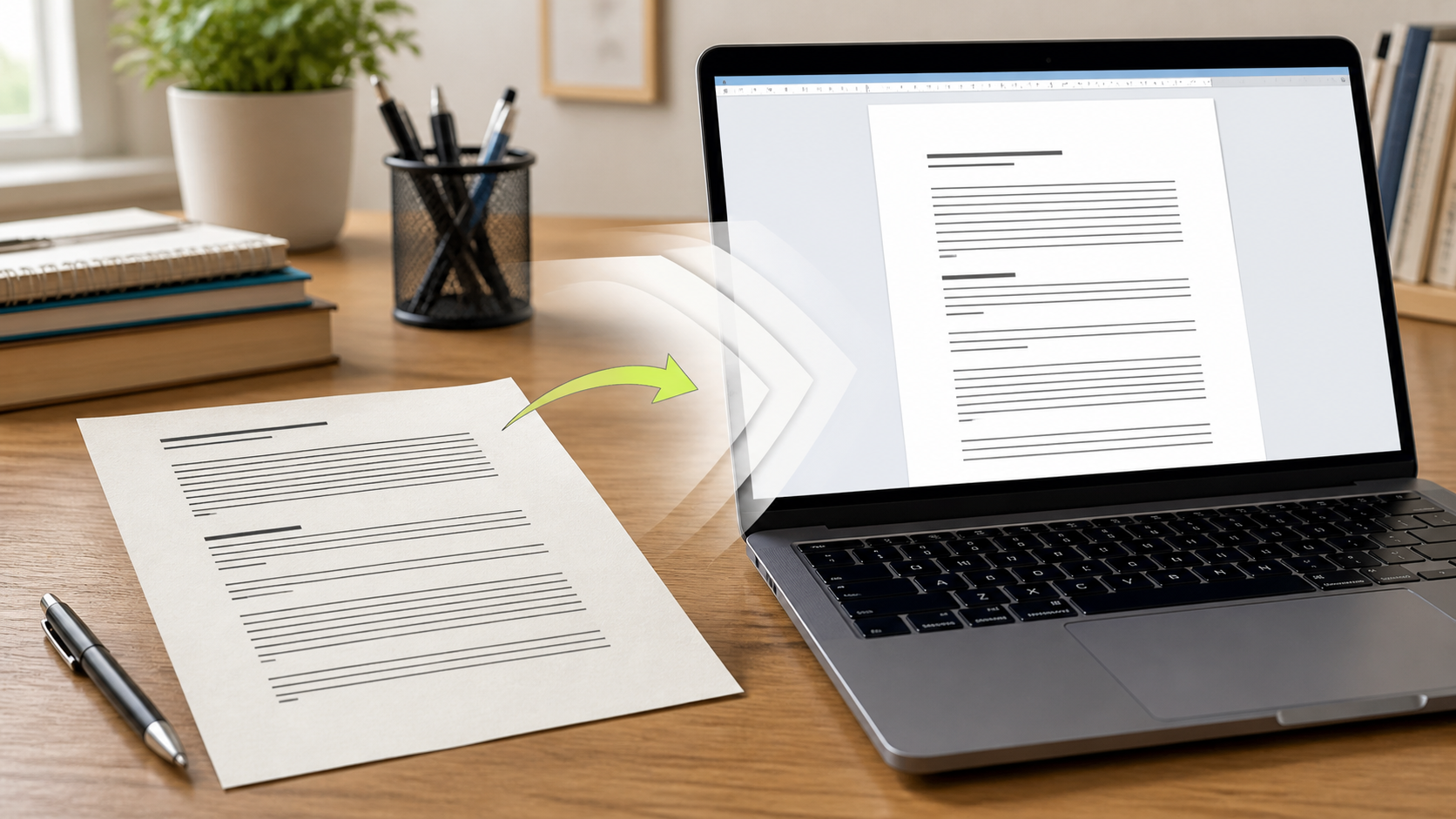
A photographed document is not an editable document yet. Even a clean scan can confuse a date, a handwritten character, a price, or a line break. The most dependable goal is not “make a perfect Word file automatically.” It is “create a usable draft, then spend review time where mistakes matter.”
Start with a photo OCR can read
Before converting, make a copy of the source image and check the basics:
- The page fills most of the frame and the text is in focus.
- Lighting is even enough that shadows do not cover words.
- The document is upright; rotate it before upload if necessary.
- Decorations, a desk edge, and unrelated pages are cropped out.
For a multi-page record, keep the originals in a clearly named folder. A downloadable Word document is useful for editing, but the photo remains the evidence of what was originally captured.
Convert the image into a draft
Open Image to Word and upload the clearest version of the photo. The tool creates a Word document from detected text so you can revise it in the editor your team already uses.
Choose Image to Text first when you only need to inspect or copy a short passage. Choose Image to Word when headings, paragraphs, and a file your colleague can edit are the useful outcome. Neither choice removes the need for human review.
Review in the right order
Do not begin by proofreading every comma. Check the high-cost mistakes first:
- Names, account numbers, dates, amounts, and contact details.
- Headings and section order, especially where a page has columns or forms.
- Negatives, units, and decimal points that change the meaning of a sentence.
- Formatting that makes a list, table, or signature line misleading.
Copy a few short phrases from the Word draft and compare them directly with the photo at high zoom. If the source is difficult to read, record that uncertainty instead of silently guessing. OCR is excellent for eliminating retyping, not for proving a record is exact.
Make the handoff clear
Name the output as a draft, such as contract-photo-ocr-draft.docx, until someone has completed the check. Keep the original image with it and note who reviewed critical fields. This small convention helps the next editor distinguish an OCR starting point from a verified final document.
For more task-specific workflows, browse the Image Guides. You can also crop an uneven photo before conversion when removing distractions will make the text clearer.
FAQ
Q: Can a photo become a perfectly formatted Word document? A: OCR can produce an editable draft, but complex tables, handwriting, stamps, and columns often need manual formatting and verification.
Q: Should I delete the original photo after conversion? A: Keep it until the edited file is reviewed and accepted. It is the reference for checking important text and layout.
Q: What should I check first after OCR? A: Verify names, dates, numbers, units, and any wording that affects a decision before polishing the document's appearance.